⬇ Download the sketchSave Project_12_ESP32_Telegram_Bot.ino. Needs UniversalTelegramBot, ArduinoJson (v6+), and the DHT libraries, plus your Wi-Fi and a bot token.
Use an existing chat app as your device's user interface: no page to design, nothing to install on the phone.
Understand why polling an outside service reaches your board on networks where hosting a web server never would.
Parse a text command and dispatch to the right action.
Send a message the other way, unprompted, when a sensor event happens: a push notification from your own hardware.
Meet HTTPS on a microcontroller, and see what a root certificate is for.
Restrict who can control the board by checking the sender's chat id before acting on a command, the same authentication idea behind API keys and passwords.
Compare three control models: local web server (Projects 5 to 9), cloud dashboard (Project 11), and chat (this one).
1How it works
Telegram runs a bot API over HTTPS. The ESP32 asks Telegram "any new messages?" once a second and acts on them, and it can also send you a message when something happens (motion).
Because it is just outbound HTTPS, this reaches your phone even on networks where a self-hosted web server would not.
Command
What it does
/status
temperature, humidity, light state
/light_on · /light_off
switch the LED or relay
/help
list the commands
2Create your bot
In Telegram, chat with @BotFather and send /newbot.
Pick a name and a username ending in bot. Copy the HTTP API token.
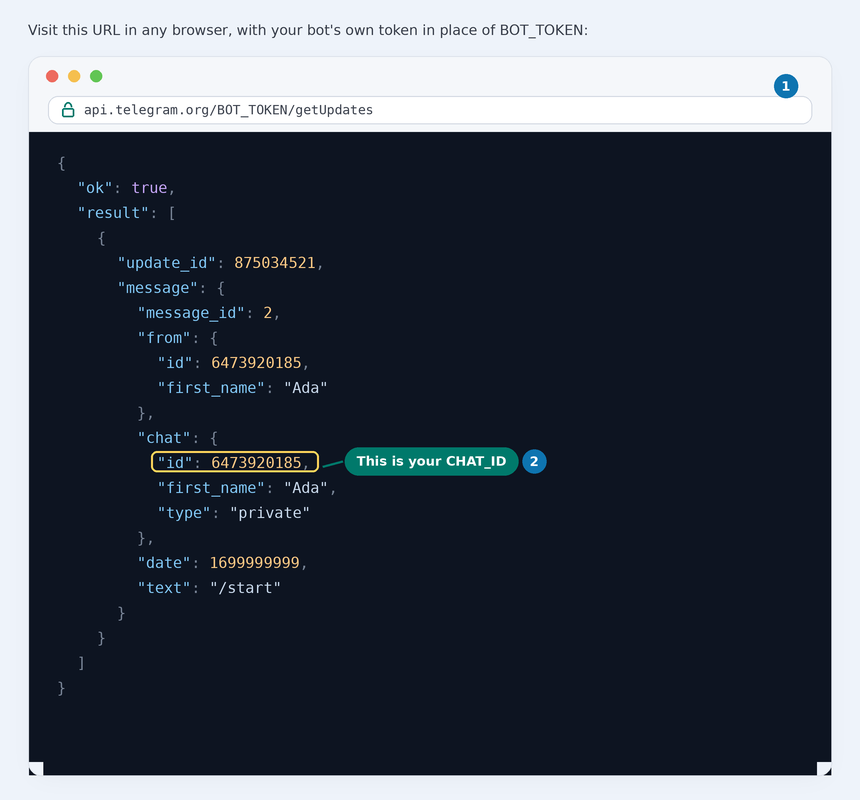
Send your new bot any message (like /start), so Telegram has something to report back, then get your numeric chat id one of two ways:
@userinfobot: open a chat with it and it replies with your personal chat id directly. Quickest for a one-to-one chat with your bot.
The Bot API itself: visit https://api.telegram.org/<your token>/getUpdates in any browser, with the token from step 2 in place of <your token>. Telegram replies with the raw JSON of your bot's recent messages; the "id" inside the "chat" object is your chat id.
The number inside "chat": { "id": ... } is the chat id to paste into CHAT_ID.
This is also the only way to find a group's chat id: add the bot to the group, send it a message there, then load the same URL, since @userinfobot only knows about its own one-to-one chat with you.
Setting CHAT_ID locks the bot to just you (or just that group) for Step 4 below, and lets it push motion alerts; leave it blank and the bot answers anyone who finds its username.
3Install the required libraries
From the Arduino Library Manager (setup: Foundation 3):
UniversalTelegramBot (by Brian Lough)
ArduinoJson (by Benoit Blanchon, version 6 or newer)
DHT sensor library (Adafruit) and Adafruit Unified Sensor
4Parts and wiring
Qty
Part
Notes
1
ESP32 · breadboard · jumper wires
as always
1
DHT11
S to GPIO 4, + to 3.3 V, - to GND
1
LED + 220 Ohm or relay
to GPIO 26
1
PIR (optional)
VCC to 5 V, OUT to GPIO 27, GND to GND
Same breadboard as Project 11, with the PIR from Project 4 added if you want motion alerts.
5Set your details and upload
Edit the marked block: WIFI_SSID, WIFI_PASS, BOT_TOKEN, and CHAT_ID (leave it "" to accept commands from anyone and skip motion pushes, or set it to restrict the bot to just you). Upload, open Serial Monitor at 115200, then send /start to your bot in Telegram.
==============================================
 Project 12: ESP32 Telegram Bot
==============================================
Connecting to Wi-Fi: MyNetwork
....
Wi-Fi connected!
IP address: 192.168.1.42
No CHAT_ID set: this bot accepts commands from anyone who finds it.
Bot ready. Open Telegram and send /start to your bot.
The IP address is your board's own address on the network, and the No CHAT_ID set line only prints while CHAT_ID is still blank; it disappears once you set it.
6Code Walkthrough: Understanding the Sketch
More moving parts than anything before it, but each one is something you have already met.
Step 1: A secure client, and a bot that rides on it
Two objects, stacked. WiFiClientSecure is a TCP connection with TLS on top: the https:// part. UniversalTelegramBot sits above it and knows Telegram's API, turning sendMessage() into the right HTTPS request. ArduinoJson is underneath both, decoding the replies, which is why the library needs it even though your code never mentions it.
The token identifies your bot to Telegram. Anyone with it can send messages as your bot, so it belongs in the edit block and nowhere public.
Every reply this sketch sends, the welcome message, a /status reading, the unauthorized-user rejection, the motion alert, now goes through this one function instead of calling bot.sendMessage() directly. That guarantees every outgoing message is echoed to Serial as [SEND -> chat_id] text, with no call site able to forget to log it. A matching Serial.print block does the same for incoming messages (Step 4 below), so Serial Monitor ends up a full transcript of the conversation: everything that came in, and everything that went out.
Fast bursts of Serial.print() calls like the six above can overflow the default output buffer, dropping or garbling characters. setup() raises it to 1024 bytes with Serial.setTxBufferSize(1024), called before Serial.begin() since the buffer can only be resized before the port opens. Serial.flush() then waits for the buffer to actually finish draining out the USB port, so a [SEND -> ...] line is never still queued when the sketch moves on.
HTTPS is only useful if the client can tell the real server from an impostor, and that check works by trusting a root certificate. Your laptop ships with hundreds. An ESP32 ships with none, so the library bundles the one Telegram's certificate chains up to and this line installs it. Skip it and every request fails to connect, even with a perfect token.
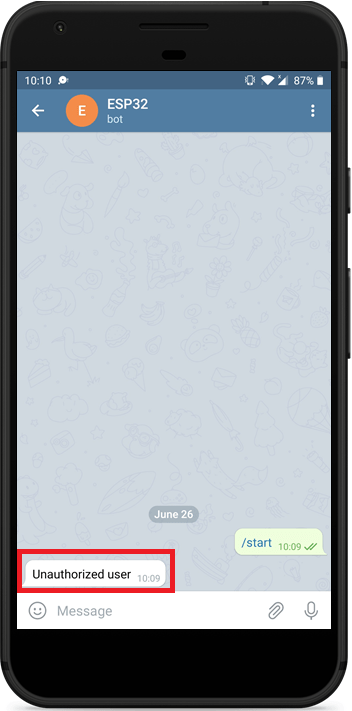
The token in Step 1 stops outsiders from pretending to be your bot, but says nothing about who is allowed to talk to it: a bot's username is public, so anyone who finds it can open a chat and send /light_on. This check closes that gap with the same idea behind a login screen, comparing an identity (the sender's chat_id) against an allow list of one (CHAT_ID) before any command runs. continue skips straight to the next queued message, so a stranger gets one polite rejection and nothing else executes, just like the real bot below.
Notice the [RECV <- ...] line fires before the authorization check even runs: every message is logged first, obeyed or not, which is exactly what you want when debugging "why didn't my bot respond", since the log tells you whether the message arrived at all.
String(CHAT_ID).length() > 0 is the escape hatch: an empty placeholder short-circuits the whole check, so the sketch still runs for a first test before you have your id, just with an open bot.
Step 5: handleNewMessages() reads the text and dispatches
for (int i = 0; i < numNewMessages; i++) {
  String chat_id = bot.messages[i].chat_id;
  String text    = bot.messages[i].text;
  String from    = bot.messages[i].from_name;

  if (text == "/light_on") {
    digitalWrite(LED_PIN, HIGH);
    sendMessage(chat_id, "Light is ON");
  }
  ...
  else {
    sendMessage(chat_id, "Unknown command. Send /help.");
  }
}
Several messages can be waiting, so the function takes a count and loops, running Step 4's check on each one before deciding anything else. Each message that passes carries who sent it (from_name), what they typed (text), and which conversation it came from (chat_id). Replying to chat_id rather than a hardcoded value still matters with a single authorized sender: set CHAT_ID to a group's id instead of a person's and this is what sends the reply back to that group.
The chain of if/else if is a command dispatcher, the same job the URL parsing did in Project 5. The final else matters: a bot that ignores what it does not understand feels broken, while one that says "send /help" teaches its own interface.
/status reads the sensor at the moment you ask, with the same isnan() guard as Project 9, and builds the reply with String(t, 1) so 24.63 prints as 24.6.
Step 6: loop() pushes on motion, then polls for commands
motion && !lastMotion is Project 4's edge detection, doing real work here: without it, standing in front of the sensor would send a message every few milliseconds until Telegram rate-limited the bot. There is no separate Serial.println confirming the alert went out: sendMessage() already prints [SEND -> ...] for every reply, motion alerts included.
The second half is polling. getUpdates(last_message_received + 1) asks "anything newer than the last one I saw?", and the + 1 is what stops the board replying to the same message forever. The inner while drains the queue, since a burst may not arrive in one response.
Note who does the asking: the ESP32 always opens the connection outwards, which is exactly why this works behind a router that would never let an incoming request through.
Key concepts: what each line really does
Code
What it does
WiFiClientSecure secured_client
A TCP connection with TLS on top. The s in https.
setCACert(TELEGRAM_CERTIFICATE_ROOT)
Installs the root certificate the board needs to trust Telegram's server.
UniversalTelegramBot bot(TOKEN, client)
Wraps the Telegram API: your bot's identity plus the secure connection it speaks over.
bot.getUpdates(bot.last_message_received + 1)
Asks for messages newer than the last one handled, and returns how many arrived.
bot.messages[i].chat_id
Which conversation a message came from. Reply here to answer the right person.
chat_id != String(CHAT_ID)
True when the message came from someone other than the configured id: the actual identity check.
bot.messages[i].text
What the user typed, ready to compare against your commands.
sendMessage(chat_id, text)
Wraps bot.sendMessage(): sends the reply and echoes it to Serial as [SEND -> chat_id] text.
Serial.setTxBufferSize(1024)
Enlarges the outgoing Serial buffer, called before Serial.begin() so bursts of log lines don't overflow it.
Serial.flush()
Blocks until the Serial buffer has actually finished sending, so a log line is never left half-queued.
motion && !lastMotion
Fires once on the rising edge, so one person walking past sends one alert.
String(CHAT_ID).length() > 0
The shared escape hatch: an empty id skips both the authorization check and the motion push.
String(t, 1)
Formats a float to one decimal place for a readable reply.
millis() - lastBotCheck > BOT_CHECK_INTERVAL
The non-blocking timer again, now pacing how often you poll Telegram.
Predict, then check. Predict: if a stranger finds your bot's username and sends /light_on before you've set CHAT_ID, does the light turn on? Check Step 4's logic, then confirm on your own bot (with CHAT_ID still blank).
7Demonstration
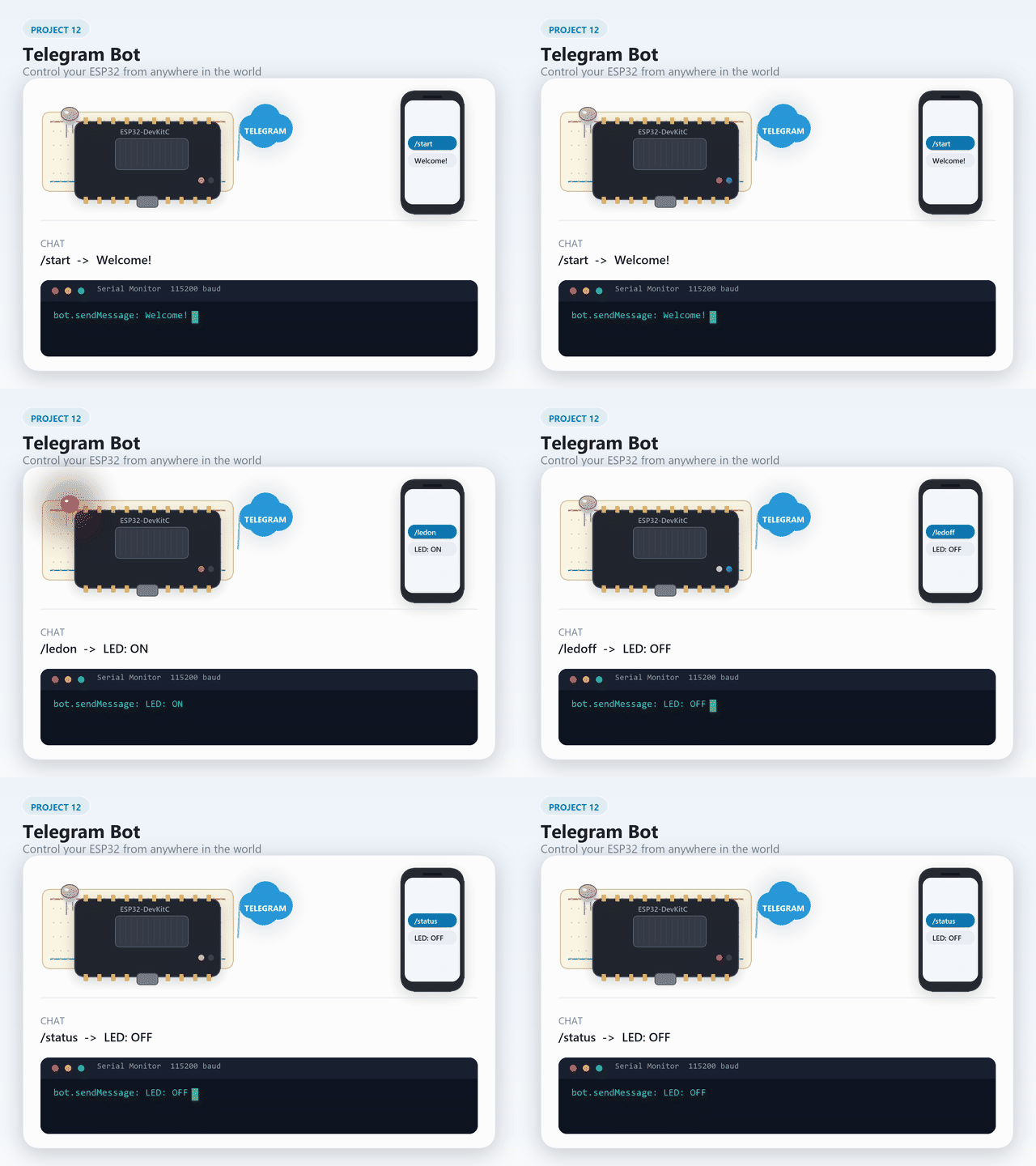
Send /start → "Welcome!" or "Unauthorized". Send /light_on → LED turns on.
🎯 Knowledge Check
1. Why does the Telegram bot use outbound polling instead of hosting a web server?
2. What must you install to make HTTPS work on the ESP32?
3. How does the bot prevent unauthorized users from controlling it?
4. What does getUpdates(last_message_received + 1) do?
5. What pattern prevents Telegram rate-limiting when motion is detected?
9Wrapping Up: What You've Learned
You have built a device with a user interface you did not have to design, reachable from any network in the world. The key takeaways:
The best UI is often one people already have. No app to install, no page to style, no instructions beyond /help.
Outbound polling beats inbound hosting. Your board opens the connection, so home routers, campus Wi-Fi, and mobile networks all work. A web server reaches only the local network.
The + 1 is the whole trick. Asking for updates newer than the last one handled is how a polling client avoids replaying its own history.
Both directions matter. Replies are pull, motion alerts are push, and a device that can interrupt you is qualitatively more useful than one you have to check.
Edge detection is not optional once a message costs something.
HTTPS needs someone to trust. A microcontroller has no certificate store, so you install the root certificate yourself.
A public bot still needs its own login check. The token secures the transport, but nothing stops a stranger from finding your bot and typing commands unless you check the sender's chat_id yourself.
Compare the three models you have now built: a local page (fast, private, same network only), a cloud dashboard (history and charts, needs an account), and a chat bot (instant, personal, no history).
Now try
Inline keyboard buttons: Replace the text commands with Telegram's inline keyboard buttons that users can tap instead of typing.
Motion photo alert: When motion is detected, send a message with a timestamp and the current temperature reading alongside the motion alert.
10Troubleshooting
Symptom
Likely cause
Fix
Bot never replies
Wrong token
Re-copy from BotFather
Error on TELEGRAM_CERTIFICATE_ROOT
Wrong library
Use UniversalTelegramBot by Brian Lough
JSON compile error
Old ArduinoJson
Update to v6 or newer
Replies are slow
Normal
It polls once per second
Bot replies "Unauthorized user"
CHAT_ID does not match your chat
Re-check the id from @userinfobot, digits only, no spaces
No motion alerts
CHAT_ID empty or wrong
Get your id from @userinfobot
Wi-Fi never connects
5 GHz network
ESP32 is 2.4 GHz only
11Going further
Add a command that returns more sensors: light from an LDR, the current motion state.
Robust message parsing. The dispatcher in Step 5 matches commands with plain ==, which is exact: a stray space, different capitalization, or Telegram appending your bot's username in a group chat (/light_on@MyBot instead of /light_on) all fail to match and fall through to "Unknown command". A slightly more forgiving dispatcher trims whitespace and strips anything from @ onward before comparing:
String text = bot.messages[i].text;
text.trim(); // drop leading/trailing whitespaceint at = text.indexOf('@');
if (at != -1) text = text.substring(0, at); // "/light_on@MyBot" -> "/light_on"if (text == "/light_on") { ... }
Do this once, right after reading text, and every existing if/else if below it keeps working unchanged.
Inline keyboards.bot.sendMessage() replies with plain text; Universal Telegram Bot's sendMessageWithInlineKeyboard() attaches tappable buttons to the message instead:
Each button carries a callback_data string, which arrives back as its own update (with bot.messages[i].text becoming that string, sent from a tap instead of typed), so the same dispatcher above can handle it with no extra code. This turns /help's list of commands into buttons a user can tap instead of memorize.
Rate limits. Telegram doesn't publish exact numbers, but the community‑verified limits are roughly 1 message per second to the same chat, 30 messages per second across different chats, and 20 messages per minute in a group. This project's edge‑detected motion alert and once‑a‑second poll already stay well inside those limits; the thing to watch is any feature that might reply to every message in a burst (like echoing every sensor change) without a check like motion && !lastMotion to space it out. Telegram enforces this with an HTTP 429 Too Many Requests response and a retry_after value telling you how long to wait.
Random Nerd Tutorials' Telegram: Control ESP32/ESP8266 Outputs is where the chat id allow list in Step 4 comes from; it also covers the ESP8266 side of the same library if you ever port a sketch to that board.
Alvaro Morales' Telegram MQTT bot + ESP32 puts a Raspberry Pi running Node-RED between the bot and several ESP32s over MQTT, so one chat reaches many boards and, notably, warns you the moment one goes offline: a natural next step once Project 11's MQTT and this project's chat are both in your toolbox.
Combine this with the Ubidots dashboard from Project 11: dashboard for history, Telegram for quick checks and alerts. Both patterns feed the capstone.